Skip to content
Forgelyne

The code editor where the AI shows its work

A fast code editor for macOS with an AI agent beside your code. Spaces keep each project's files and terminals apart, and the agent works through the Claude or ChatGPT plan already on your Mac.

Version 0.9.0 · Apple silicon · macOS 13 or later · Free

Forgelyne with orders.ts open and the agent panel beside it: a timeline of the files it read, the commands it ran and its proposed edit, then Finished

New in 0.9.0

Read the changelog

Browser

Your web app, inside the editor

The Browser tab shows your app in a headless Chrome, so it looks the way Chrome draws it. Pick an element to see its selector, size and styles, and change a style or its text live in the page.

Add the element to the chat with a cropped image, and the agent edits the source. Running dev servers are offered as links.

⌘⇧B
Browser
⌘⇧C
Pick an element

Tracklyne

Errors next to the code that caused them

Connect a Tracklyne key, link the project, and the Errors tab lists its error issues by status. Open one for its stack trace: frames in your project open at their line.

Add to chat hands the error to the agent.

Harness

A harness for each project

Project settings › Harness lists the MCP servers, skills, commands, agents, rules files and hooks that project uses. Turn any of them off, or add your own, for that project only.

Hooks can check or block a tool call before it runs.

What it does

AI agent

An agent that shows its work

⌘L
AI panel
⌘K
Edit the selection

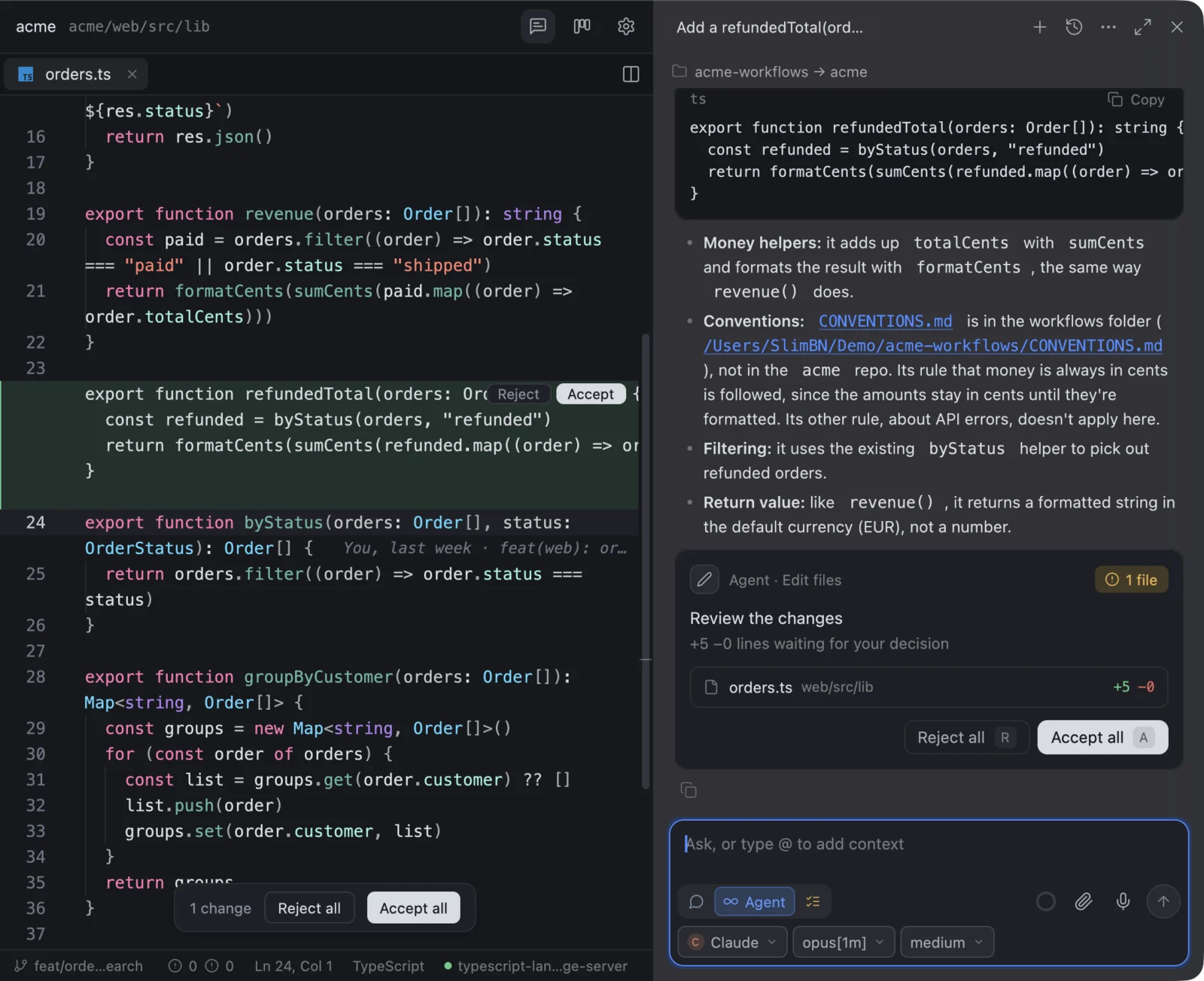
Ask, plan or let the agent make the change. What it does builds up as a timeline: how long it worked, what it thought, the files and pages it read as chips, and a check when it is done. Paths open in the editor at their line.

Its edits never go straight to disk. They show as differences in the editor, you keep or drop each one, and every turn keeps a checkpoint to go back to.

The agent's edit shown as a green difference in the editor with Accept and Reject, and a card to review its one changed file

Agent mode

Give the conversation the whole window

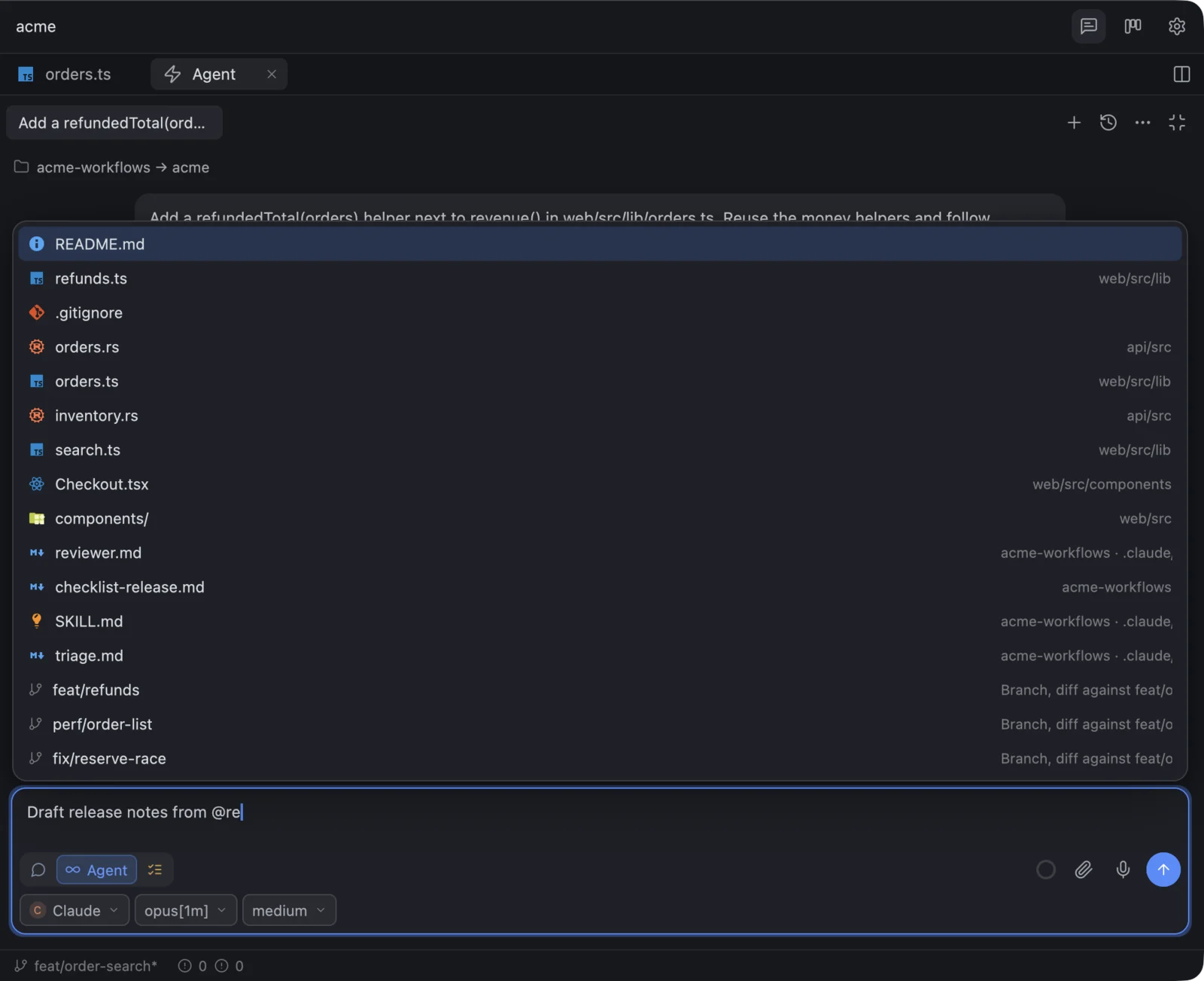
One click moves the AI panel into a tab of the editor area, live, even mid-turn. Collapse it and it is back beside your code.

Run the agent from a shared workflow folder while it changes your project: @ finds that folder's files, and / lists its commands, skills and agents.

The conversation in an editor tab, with @ suggestions listing files from the project and from the acme-workflows folder

Commit trail

Every branch on its own lane

⇧⌘H
Commit trail

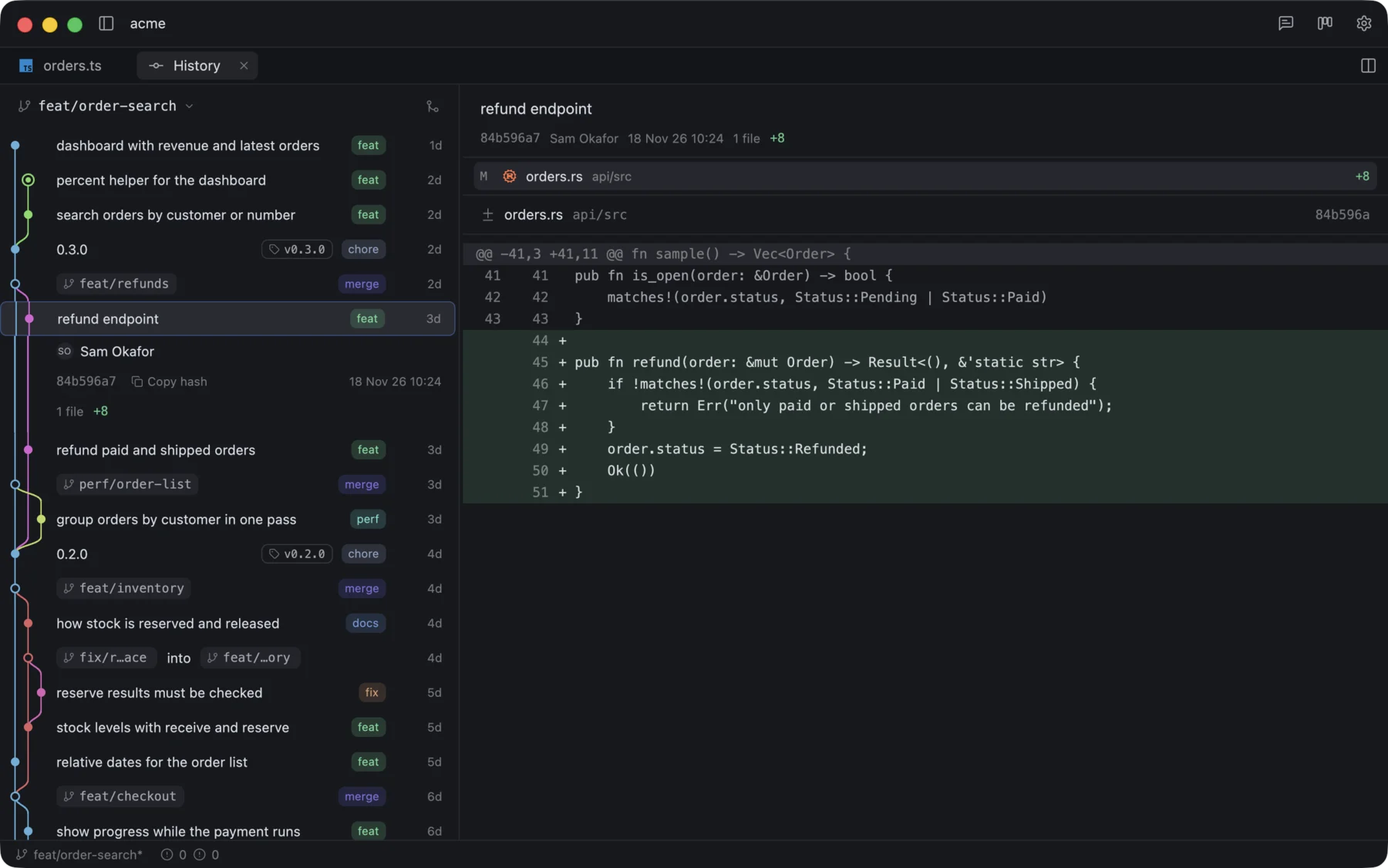
The history draws every branch, remote branch and tag on a lane graph, each in its own color, with forks and merges as curves. Commit kinds, version tags, files and branches read at a glance.

Open a commit for its author, files and message, or expand the trail into a tab with the diff beside it. Long histories scroll without a stutter.

The commit trail with coloured lanes for feature branches merging back, version tags, commit kinds, and a selected commit's diff

Review center

Review your branch before anyone else does

AERS
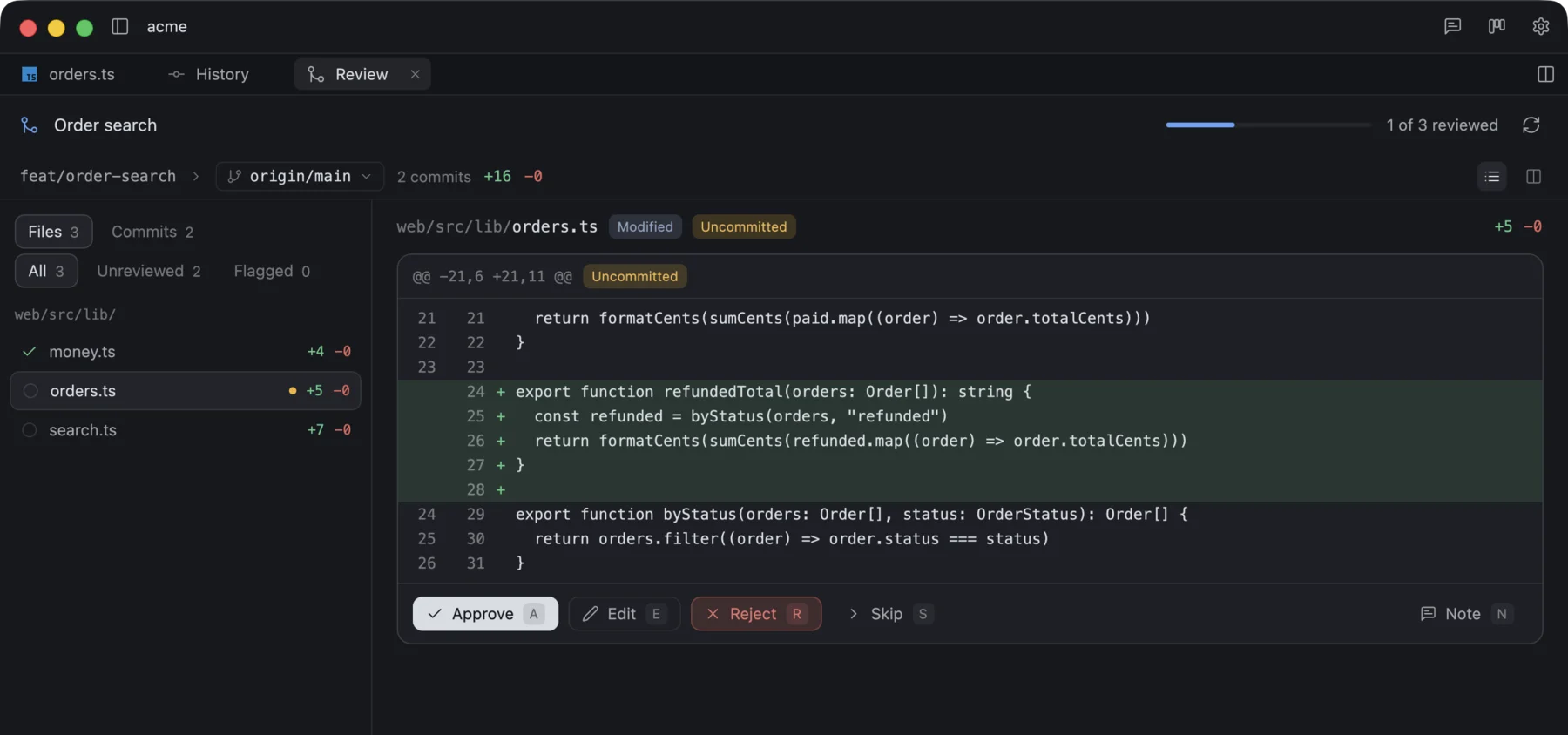
Approve, edit, reject, skip

Open your branch as a pull request against the base you pick. Approve, edit, reject or skip each change, then stage, commit, commit to a new branch or revert what you rejected.

Copy a ready pull request description when you are done.

The review center for the feat/order-search branch against origin/main, one of three files approved, with Approve, Edit, Reject and Skip

Cyclevane

Your issues next to your code

⌥⌘I
Issues
⌘N
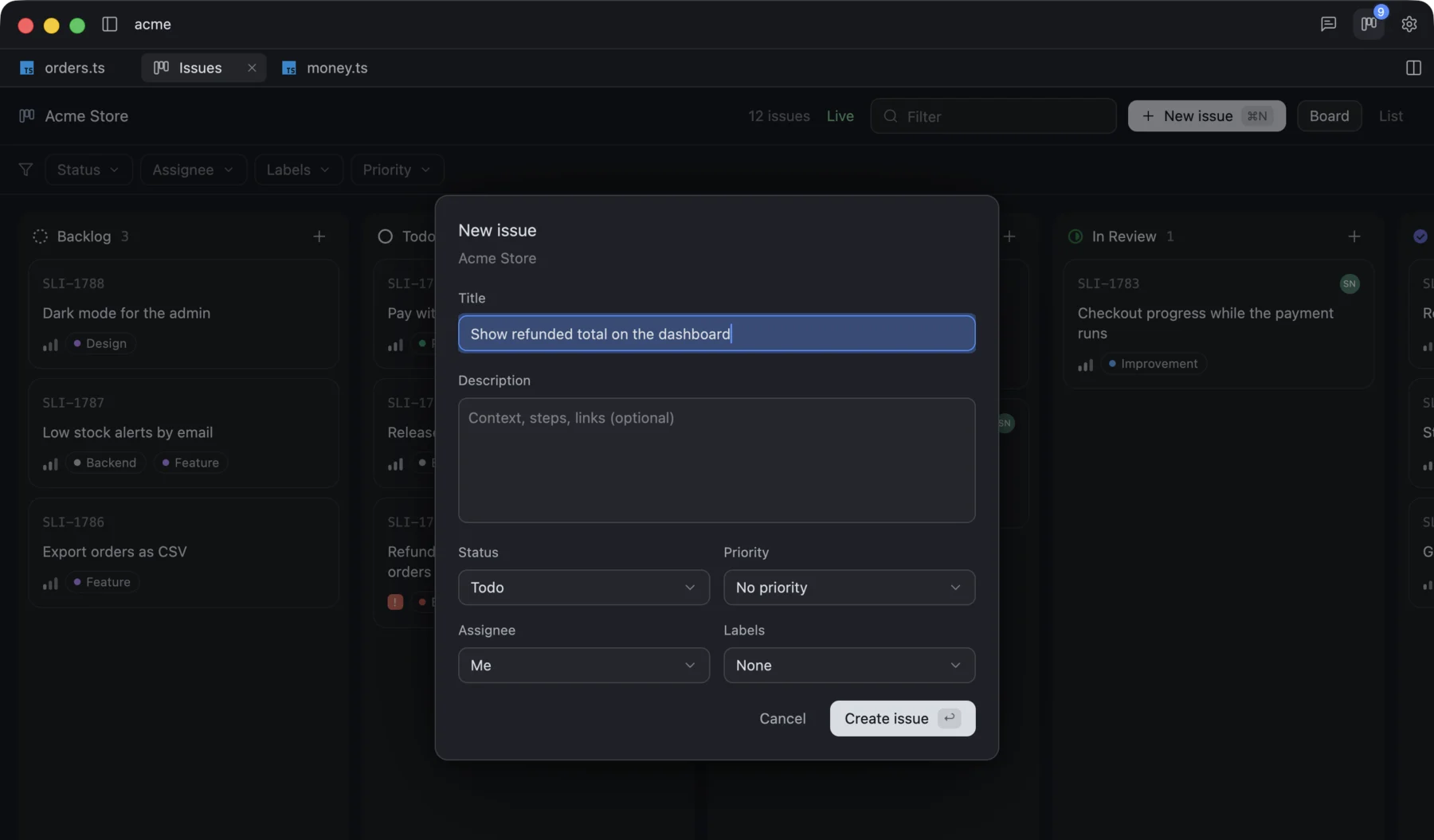
New issue, in the board

Connect Cyclevane and the issues of the project's board open as a board or a list that moves live. Drag a card to change its status.

Create an issue without leaving the editor: New issue, or + on a column to start it in that status.

The Cyclevane board of the Acme Store project, live, with the New issue dialog open: title, description, status, priority, assignee and labels

Spaces

Each project in its own space

⌥⌘S
Spaces
⇧⌘N
New space

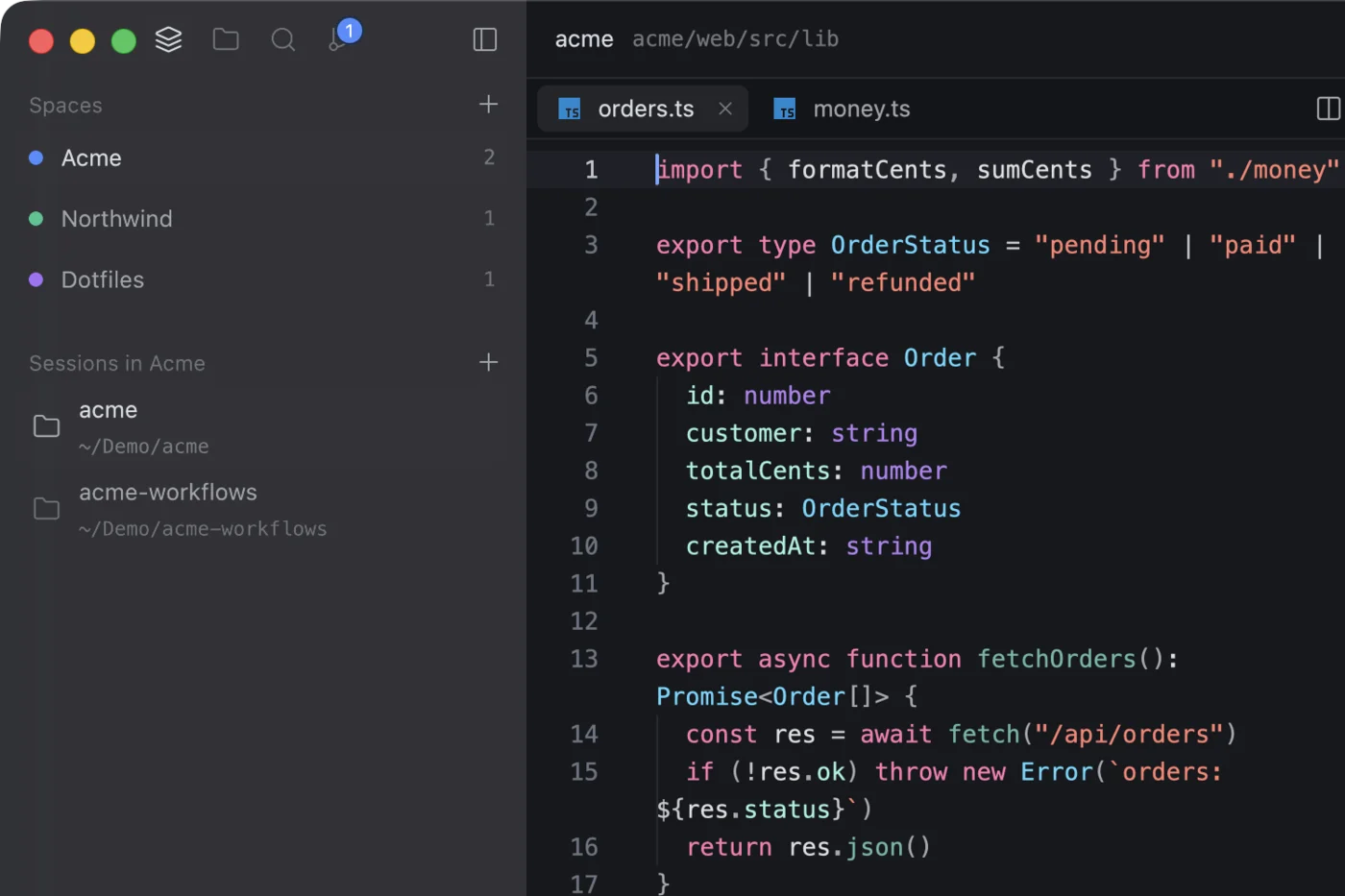
Spaces group your work like Arc: each lists the projects you opened in it, so a client project, a side project and your dotfiles never mix. Swipe with two fingers to change space.

Files open as tabs, split into groups, and Ctrl Tab goes back to the last file.

The spaces sidebar with Acme, Northwind and Dotfiles, the Acme space's two projects, and files split side by side

Editor

An editor that keeps up

⌘D
Next match
⌘P
Go to file

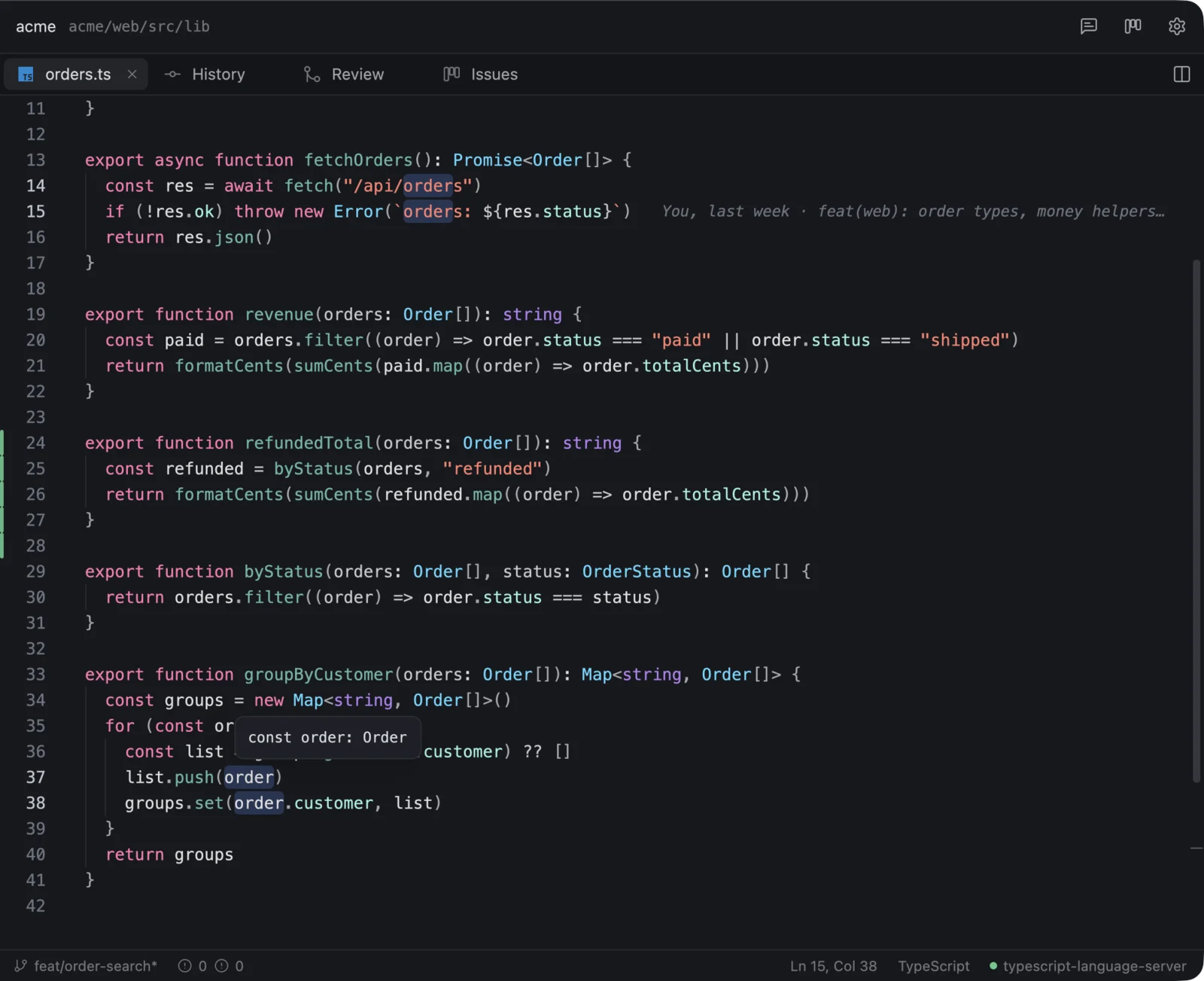
Multiple cursors, column selection, find and replace with regular expressions, folding, word wrap and an optional Vim mode. Large files open at once.

Grey suggestions appear as you type, and Tab accepts them.

Four cursors on every order in a TypeScript file, with the type of order in a hover and the line's last commit inline

Languages

Seventeen languages, and your language servers

F12
Go to definition
F2
Rename

Syntax colors, folding and an outline for TypeScript, JavaScript, Rust, Python, Go, Swift, Ruby, PHP, HTML, CSS, JSON, YAML, TOML, Markdown, SQL, Dockerfile and Bash.

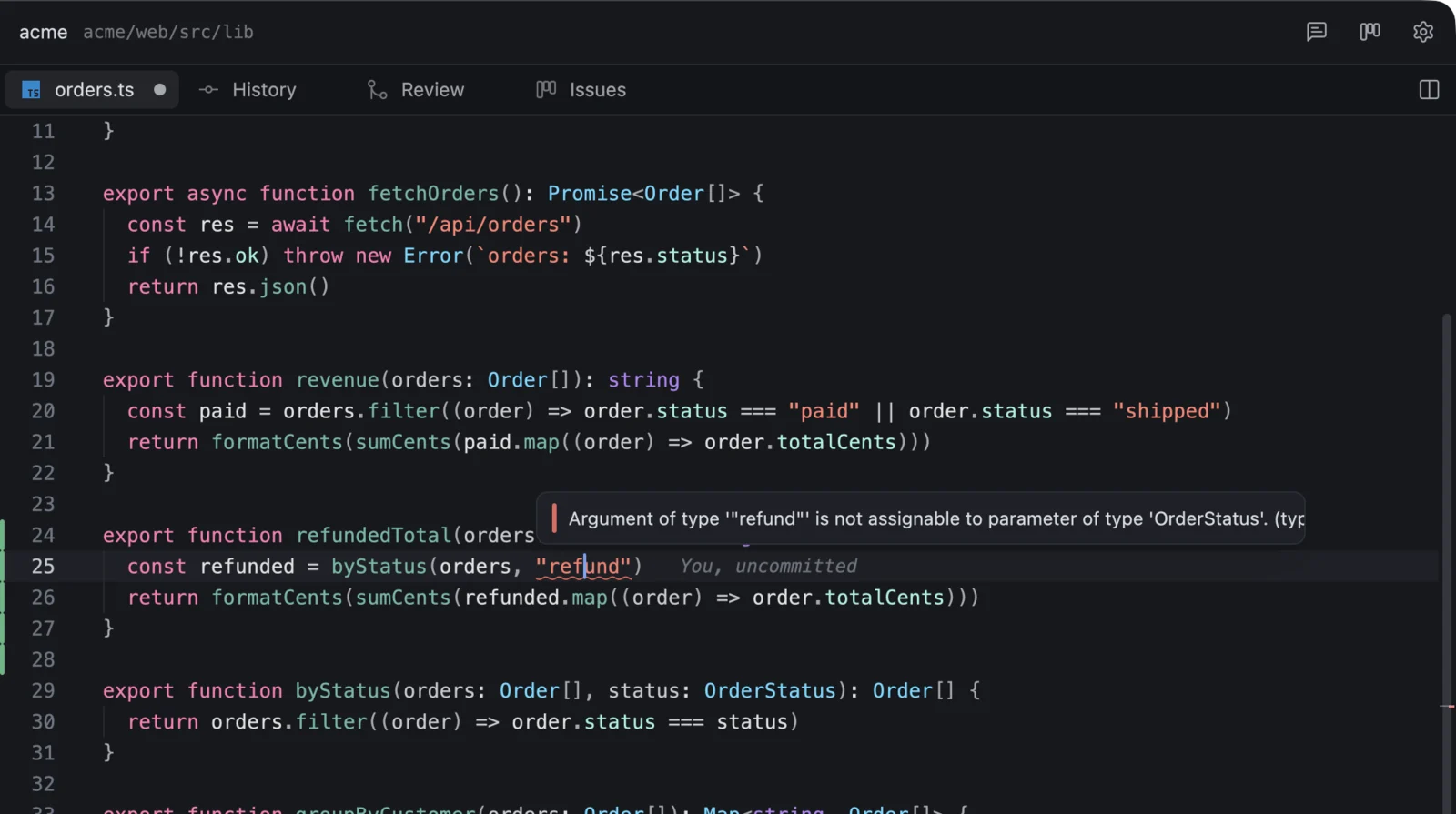
With a language server installed: errors as you type, hover, go to definition, references, rename across files, quick fixes and format on save.

A TypeScript error underlined as you type, with the language server's message: refund is not assignable to OrderStatus

And the rest of a good editor

  • Terminals

    The project's terminals at the bottom, with command blocks, history search and full-screen programs.

  • Source control

    Changes as a list or a tree, commit messages written for you, stash, push, and blame on the line you're on.

  • Themes

    Light and dark follow macOS. Import a VS Code or Zed theme file as it is.

  • English, French, Arabic

    Follows macOS or your choice. In Arabic the window mirrors and code stays left to right.

  • Command palette

    Every action, file and space one search away with ⇧⌘P.

  • Command line

    fl opens a folder or a file at a line from the terminal, and waits when git asks for an editor.

  • Your shortcuts

    Every shortcut can be changed in Settings › Keyboard.

  • Stays on your Mac

    No account and no sync. Chats and settings are plain files. Usage data is optional: one switch in Settings turns it off.

Made for the keyboard

Every shortcut can be changed in Settings › Keyboard.

Go to file / command palette
⌘P/⇧⌘P
Open folder / side panel
⌘O/⌘B
Explorer / source control
⇧⌘E/⌃⇧G
Spaces
⌥⌘S
Find in project / go to symbol
⇧⌘F/⇧⌘O
AI panel / inline edit
⌘L/⌘K
Commit trail
⇧⌘H
Cyclevane issues
⌥⌘I
Browser / pick an element
⌘⇧B/⌘⇧C
Split right / down
⌘\/⇧⌘\
Close tab / reopen closed tab
⌘W/⇧⌘T

Download Forgelyne

Free. Sign in to Claude Code or Codex once, and the AI features use the plan you already have.

Version
0.9.0
Requires
Apple silicon · macOS 13 or later
Size
19 MB
All versions

Opening it the first time

Forgelyne is signed for local use, so macOS asks once before opening it.

  1. 1

    Open Forgelyne.dmg and drag Forgelyne to Applications.

  2. 2

    Open Forgelyne. macOS says it can't check the app, because it is signed for local use: click Done.

  3. 3

    Open System Settings › Privacy & Security, scroll to Security and click Open Anyway next to Forgelyne, then confirm. From then on it opens like any other app.